Invoices land in your inbox, a VAT-ready ledger builds itself: a no-code n8n pipeline

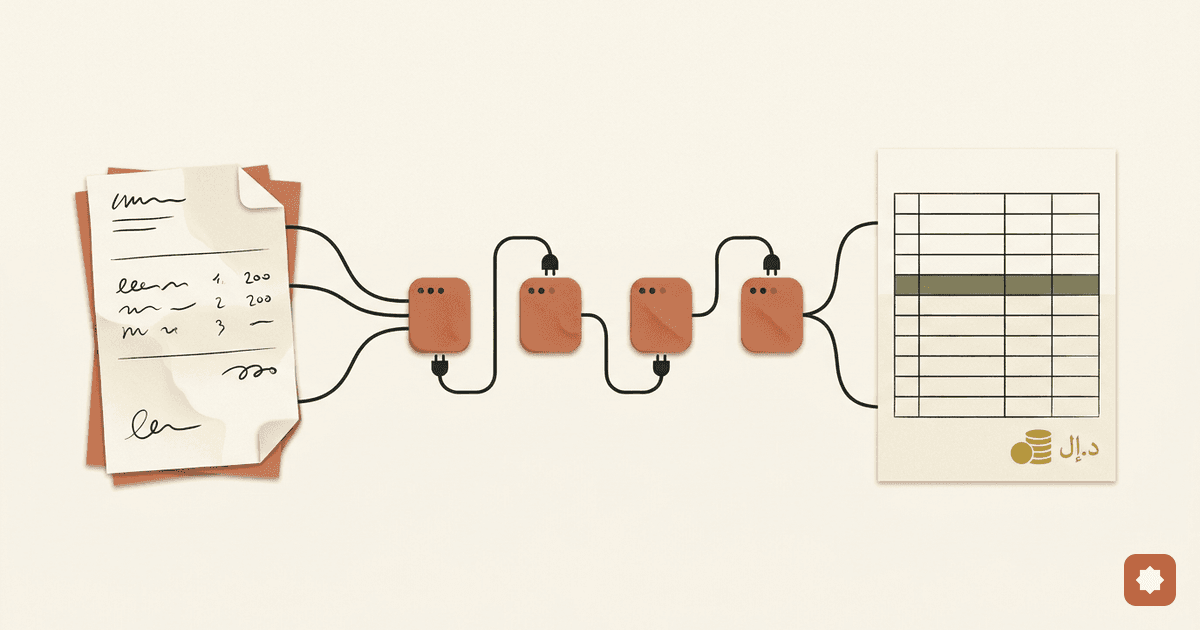
There are three ways I've written about getting VAT numbers out of a pile of invoices. A single prompt that reads a whole return and checks its own maths. A set of Excel moves that turn a messy export into a VAT-ready CSV. Both start with you — you paste, you open the file. This third way doesn't wait for you at all. An invoice lands in the inbox, and by the time you look, it's already extracted, validated, deduplicated, and sitting as a row in the ledger.
That's the distinction worth being precise about. The prompt trick gets the data out of one document. The Excel trick cleans what you already have. This workflow captures invoices at the source — as they arrive — and builds the two numbers your VAT return actually needs, in real time, without you opening a single email.
It's a no-code build in n8n, and I'll give you the whole thing node by node. Nothing here is hypothetical — every node below is a built-in n8n node, verified against the official docs and three live workflow templates as of July 2026. Where a screenshot belongs, I've marked it, because you should see each stage on your own canvas, not take my word for it.
What "VAT-ready" actually means
Before the plumbing, the point of it. A VAT return, stripped to its spine, asks you for two totals on the purchases side: the total input VAT you're reclaiming, and the total net value of what you bought. On a UK HMRC return those are Box 4 and Box 7. Every other VAT regime — Egypt, the GCC, the EU — asks for the same two numbers under different labels. Get those two right and reconcile-able, and the return is a copy-paste. Get them from a spreadsheet someone keyed by hand at 11pm on the quarter's last day, and you're one fat-fingered VAT rate away from a query.
So "VAT-ready" isn't "the data is extracted." It's narrower and stricter: every invoice is captured, the maths on each one ties out, nothing is double-counted, and the two numbers that feed the return are live. That's the bar this pipeline is built to clear — not to file your VAT, but to make sure that when you do, the numbers underneath it are already clean.
The shape of it
Six nodes, in a line, with two places where the flow splits to catch a problem:
- Email trigger — watches a mailbox for invoices.
- Extract from PDF — pulls the text out of the attachment.
- AI extraction — reads the text and returns nine structured VAT fields.
- Validation — checks the required fields are present and the VAT arithmetic is internally consistent.
- Duplicate guard — makes sure this invoice isn't already in the ledger.
- Append row — writes the clean, validated record to a Google Sheet.
You need three credentials to run it: an OpenAI API key, Google OAuth for Sheets, and IMAP (or Gmail) access to a mailbox. Self-host n8n's free Community edition and the only running cost is the AI — which, as you'll see at the end, is measured in single-digit dollars per thousand invoices.
Node 1 — The trigger: watch the inbox
Start with the Email Trigger (IMAP) node (n8n-nodes-base.emailimap). It watches a mailbox and fires the workflow once for every matching email.
Configure it like this:
- Mailbox:
INBOX, or better, a dedicated "Invoices" label so you're not scanning every newsletter. - Download Attachments: on.
- Format: Resolved — this delivers the binary attachment data to the next node.
- Custom Email Rules:
SUBJECT "invoice"— narrows it to invoice emails. - Force Reconnect Every: 10 minutes, for production reliability.
For the credential you'll need IMAP host, port, user and password. One gotcha that costs people an afternoon: for Gmail with 2FA on, a normal password won't work over IMAP — you have to generate a Google App Password.
If your team is on Google Workspace, the Gmail Trigger node (n8n-nodes-base.gmailtrigger) is the cleaner option — it authenticates over OAuth2, watches by label, and hands you the attachments directly.
Screenshot 1 — the IMAP config panel: mailbox, Download Attachments toggle on, the SUBJECT "invoice" rule. Run a manual test with one sample invoice email and confirm an attachment shows up in the node's output.
Node 2 — Get the text out of the PDF
Add the Extract From File node (n8n-nodes-base.extractfromfile). It takes the binary PDF from the email and turns it into plain text the AI can read.
- Operation: Extract from PDF.
- Input Binary Field:
data(the default — it matches what the IMAP node delivers). - Output: the invoice text lands in
$json.text.
No credential needed; it's built in.
Screenshot 2 — the Extract From File output with the text field populated, so you can see the raw invoice content the AI is about to work from.
Node 3 — Let the AI pull the nine fields
This is the node doing the real lifting: the Information Extractor (n8n-nodes-langchain.information-extractor), an n8n LangChain cluster node that sends text to a model and returns structured JSON. It needs a Chat Model sub-node wired underneath it — use OpenAI Chat Model (n8n-nodes-langchain.lmChatOpenAi) set to gpt-4o, which is the most accurate of the current options on financial documents.
In the Information Extractor itself:
- Text Input:
{{ $json.text }} - Schema Type: From Attribute Descriptions
Then define the nine fields it should return. These nine are chosen deliberately — they're exactly what a VAT return and an audit trail need, no more:
| Attribute | Description |
|---|---|
supplier_name | Company name of the supplier who issued the invoice |
supplier_tax_id | Supplier VAT registration number (e.g. GB123456789, DE123456789) |
invoice_number | Unique invoice reference or number |
invoice_date | Invoice date — returned as YYYY-MM-DD |
currency | 3-letter ISO currency code (GBP, EUR, USD…) |
net_amount | Total net amount excluding VAT (number only) |
vat_rate | VAT percentage as a decimal (0.20 for 20%, 0.05 for 5%) |
vat_amount | Total VAT charged (number only) |
gross_total | Total including VAT (number only) |
And give it a system prompt that keeps it honest — this matters, because the worst thing a tax tool can do is invent a number:
You are a VAT accounting assistant. Extract the nine VAT fields from the
supplier invoice text provided. Return ONLY valid JSON. If a field cannot
be found in the invoice text, return null for that field. Do not invent or
estimate values not present in the document.
The extracted object comes out as $json.output.
Screenshot 3 — all three nodes on the canvas with the OpenAI Chat Model sub-node attached beneath the Information Extractor, and the node output showing the nine-field JSON next to the raw invoice text it came from.
Node 4 — Validate: presence, then arithmetic
Extraction is not trust. The AI is good, not infallible, so nothing reaches the ledger until it clears two checks. Both are IF nodes (n8n-nodes-base.if).
4a — required fields present. Six fields are non-negotiable; if any came back null, the invoice can't go to the ledger. Set all of these as conditions on the pass branch:
{{ $json.output.supplier_name }}   is not empty
{{ $json.output.invoice_number }}  is not empty
{{ $json.output.invoice_date }}    is not empty
{{ $json.output.net_amount }}      is not empty
{{ $json.output.vat_amount }}      is not empty
{{ $json.output.gross_total }}     is not empty
Wire the false branch to a Send Email or Slack node: "Invoice failed extraction — manual review needed." The failure is loud, not silent. That's the whole design principle here.
4b — the maths ties out. This is the part I like, because it's the check a tired human skips. Two conditions, both must be true:
// net × rate should equal the VAT amount, within 1%
{{ Math.abs( ($json.output.net_amount * $json.output.vat_rate)
   - $json.output.vat_amount ) <= ($json.output.net_amount * 0.01) }}

// net + VAT should equal the gross, within 1%
{{ Math.abs( ($json.output.net_amount + $json.output.vat_amount)
   - $json.output.gross_total ) <= ($json.output.net_amount * 0.01) }}
Why the 1% tolerance rather than exact equality? Because invoices round VAT to the nearest penny, and exact equality fails on small amounts. One percent absorbs rounding without letting a genuinely wrong number through. If either check fails, the invoice routes to the same manual-review notification as 4a.
Screenshot 4 — the two-branch IF split. Run it twice: once with a clean invoice (passes), once with a doctored one where the numbers don't add up (fires the false branch).
Node 5 — Don't count the same invoice twice
Before writing, look the ledger up. A Google Sheets node (n8n-nodes-base.googlesheets) in Lookup mode, keyed on the invoice number:
- Lookup Column:
Invoice Number - Lookup Value:
{{ $json.output.invoice_number }}
Then a second IF node routes on the result:
{{ $json.rows.length > 0 }}→ the invoice is already there. Stop, and log "Duplicate invoice: {invoice_number} — skipped."{{ $json.rows.length === 0 }}→ new invoice, continue.
This is what makes the workflow safe to run on a mailbox where the same invoice sometimes arrives twice — a resend, a reply-all, a forward. Without it, a re-sent invoice would inflate your input VAT.
Screenshot 5 — process the same invoice email twice. The second run routes to the duplicate branch and nothing new is appended.
Node 6 — Write the VAT-ready row
Finally, the Google Sheets node again in Append or Update Row mode, matching on Invoice Number as a second, write-time dedupe. Map the columns:
| Sheet column | Expression |
|---|---|
| Transaction Date | {{ $json.output.invoice_date }} |
| Invoice Number | {{ $json.output.invoice_number }} |
| Supplier Name | {{ $json.output.supplier_name }} |
| Supplier VAT No. | {{ $json.output.supplier_tax_id }} |
| Currency | {{ $json.output.currency }} |
| Net Amount | {{ $json.output.net_amount }} |
| VAT Rate % | {{ $json.output.vat_rate * 100 }} |
| VAT Amount | {{ $json.output.vat_amount }} |
| Gross Total | {{ $json.output.gross_total }} |
| Source | email |
| Processed At | {{ new Date().toISOString() }} |
Screenshot 6 — the full six-node pipeline on one canvas, Google Sheets open alongside, and the new row appearing in the ledger after a test run.
The ledger, and why these columns
Eleven columns. Each one earns its place against what a VAT return and an auditor actually ask for:
| Col | Header | What it's for |
|---|---|---|
| A | Transaction Date | The tax point — decides which VAT quarter the invoice falls in |
| B | Invoice Number | Audit reference; you need it to reclaim input VAT |
| C | Supplier Name | Vendor record |
| D | Supplier VAT No. | Required to reclaim input VAT; confirms the supplier is registered |
| E | Currency | Flags foreign-currency invoices that need converting |
| F | Net Amount | The net-purchases total (UK Box 7) |
| G | VAT Rate % | Rate classification — standard, reduced, zero |
| H | VAT Amount | The input-VAT total to reclaim (UK Box 4) |
| I | Gross Total | Payment reconciliation cross-check |
| J | Source | Audit trail |
| K | Processed At | ISO timestamp of the run |
The two that matter most are F and H. Sum column F and you have your net purchases; sum column H and you have your reclaimable input VAT. On a UK return those go straight into Box 7 and Box 4. On an Egyptian or Gulf return they carry different labels but they're the same two totals. Everything else in the sheet is there to reconcile and to survive an audit. That is what makes the output VAT-ready rather than merely extracted.
What it costs
Honestly, not much — the AI is the cheap part.
- n8n: Community edition is free and open-source, but it needs somewhere to run (a ~$5/month VPS or a spare machine). n8n Cloud Starter is $20/month for 2,500 executions; Pro is $50/month for unlimited.
- OpenAI (GPT-4o): at July 2026 pricing — $2.50 per million input tokens, $10.00 per million output — a typical invoice runs about 800 input + 200 output tokens, roughly $0.004 each. A thousand invoices a month is about $4 in AI. You need an OpenAI API account, not a ChatGPT Plus subscription.
- Google: a free personal account works for Gmail and Sheets; Workspace is better for a business. OAuth needs a Google Cloud project with the Drive and Sheets APIs enabled — free, about five minutes.
Building from scratch, budget 45–90 minutes the first time. Start from a published n8n invoice template and it's closer to 30.
Where it breaks — read this part twice
I'd rather you know the edges than discover them at quarter-end.
- Scanned or photographed invoices produce empty text. Covered above — you need an OCR step. This is the single most common reason a first build "does nothing."
- AI extraction is high-accuracy, not perfect. GPT-4o handles standard layouts well but can miss fields on heavily customised or non-English invoices. The validation nodes catch maths errors — but a misspelled supplier name or a wrong VAT number that still adds up will pass straight through. Spot-check the ledger monthly.
- The duplicate guard is keyed on invoice number alone. Two different suppliers that happen to reuse the same invoice number won't both be caught by the Node 5 lookup. The write-time match on Node 6 stops a straight double-write, but the pre-check doesn't distinguish suppliers. Worth knowing before you rely on it.
- No printed VAT rate, no pass. If a supplier doesn't state the rate,
vat_ratecomes back null and both maths checks fail — which is correct. The invoice is flagged for review, not silently dropped. - No currency conversion. A mixed-currency ledger needs converting to your reporting currency at the tax-point rate. That's a natural follow-on build, not this one.
The point
Automation in tax earns its keep when it removes the keystrokes without touching the judgment. This pipeline never decides anything a person should decide — it doesn't file your return, and it doesn't sign off a number. What it does is make sure that every invoice is captured the moment it arrives, that the arithmetic on each one is checked before it's trusted, and that the two totals feeding your return are always current and always reconcilable.
The manual version of this job is an hour of copy-paste and a quiet hope that nobody transposed a digit. The automated version is a mailbox that quietly builds your Box 4 and Box 7 while you do the work only you can do. Build the capture and the check first. The filing is still yours — but by the time you reach it, there's nothing left to clean.